Vermillions Crimson App Not Working? Fixes for Login and Loading Issues
Common Problems with the Vermillions Crimson App
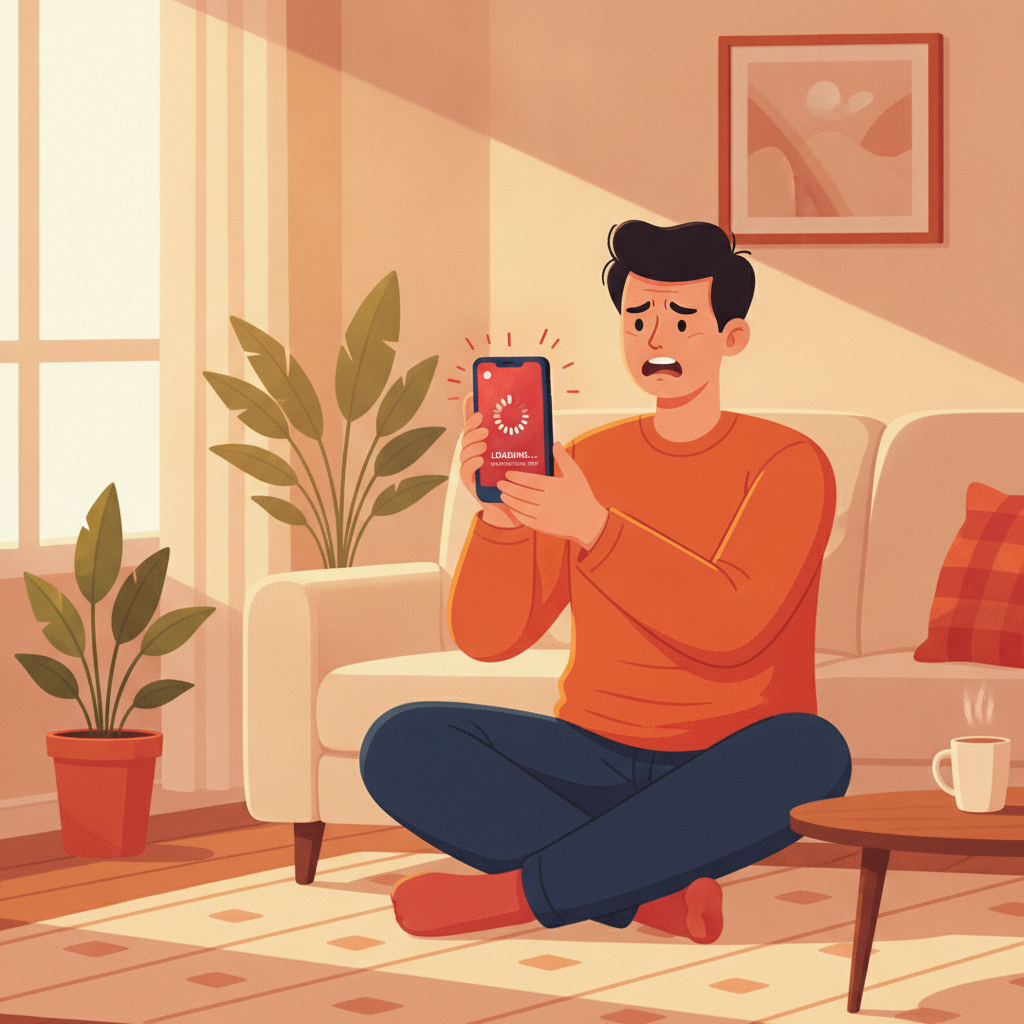
Players sometimes run into technical issues when trying to use the Vermillions Crimson app on their Android or iOS device. The most common complaints include the app refusing to open after tapping the icon, getting stuck on the loading screen with a spinning logo, or being trapped in a login loop where entering your username and password just returns you to the same login page.
Other users report the app crashing seconds after launch, screens freezing when trying to load game lobbies or sports betting markets, or error messages saying "Connection failed" or "Unable to authenticate." These problems can happen on both the Android APK version and the iOS app, though Android users who sideload the APK sometimes see more frequent issues after an operating system update.
Understanding why these problems occur—and knowing the step-by-step fixes—can save you time and frustration when you want to place a bet or check your balance.
Clear Cache and App Data on Android
If the Vermillions Crimson app is freezing, loading slowly, or showing outdated information, clearing the app cache is often the fastest fix. Cached data can become corrupted or bloated over time, especially if you use the app daily.
On Android:
- Open Settings and tap Apps (or Application Manager on some phones).
- Scroll down and tap Vermillions Crimson.
- Tap Storage.
- Tap Clear Cache. This removes temporary files without deleting your login details.
- If clearing cache doesn't help, tap Clear Data (or Clear Storage). This resets the app completely, so you will need to log in again.
Restart your phone after clearing data, then open the app and enter your username and password. This process often resolves stuck loading screens and login loops.
On iOS:
iOS does not offer a manual cache-clear option for individual apps. The simplest approach is to delete the Vermillions Crimson app from your home screen (press and hold, then tap Remove App > Delete App), then reinstall it from the link provided by Vermillions Crimson or your original download source.
Update or Reinstall the App
Running an outdated version of the Vermillions Crimson app can cause compatibility issues, especially if the platform has pushed server-side changes. Because the app is typically distributed as an APK (Android) or through a direct download link (iOS) rather than official app stores, updates do not happen automatically.
Check for updates:
Visit the Vermillions Crimson official site on your mobile browser and look for a banner or menu item that says "Download App" or "App Update Available." If a newer version is listed, download and install it. On Android, you may need to allow installation from unknown sources in your security settings.
Reinstall the app:
If updating does not solve the problem, a full reinstall can clear deeper issues:
- Uninstall the current app from your device.
- Restart your phone.
- Download the latest APK or iOS app file from the Vermillions Crimson site.
- Install and log in.
Keep a note of your username and password before uninstalling, as you will need to enter them again. Reinstalling often fixes problems where the app won't open at all or crashes immediately after launch.
Check Your Internet Connection
A weak or unstable internet connection is a frequent cause of loading issues, login failures, and "Connection timed out" errors. Because Vermillions Crimson is a real-money platform, the app requires a steady connection to communicate with the server, verify your session, and load live odds or game data.
Troubleshooting steps:
- Switch between mobile data and Wi-Fi. If you're on mobile data, try connecting to a Wi-Fi network, or vice versa. Sometimes one connection is more stable than the other.
- Move closer to your router if you're using Wi-Fi. Thick walls or distance can weaken the signal.
- Restart your router by unplugging it for 10 seconds, then plugging it back in.
- Test your connection by opening a browser and loading a webpage or streaming a short video. If other apps or sites are also slow, the issue is with your internet, not the app.
- Disable VPN or proxy services. Some VPNs interfere with the app's ability to connect to the Vermillions Crimson servers, triggering security blocks or timeouts.
If your connection is stable but the app still won't load, the problem may be on the server side.
Check Server Status
Occasionally, the Vermillions Crimson platform experiences scheduled maintenance or unplanned downtime. During these periods, the app may show a loading screen that never completes, or you may see an error message like "Service temporarily unavailable."
How to check:
- Visit the Vermillions Crimson website on a mobile browser to see if a maintenance notice is displayed.
- Look for announcements on the platform's official social media pages or community groups. Operators sometimes post updates about server issues or downtime windows.
- Try logging in via the mobile browser version of the site. If the browser version also fails to load, the servers are likely down for everyone.
If server maintenance is underway, you will need to wait until the platform comes back online. Most maintenance windows last between 30 minutes and a few hours.
Account Locked or Suspended
If the Vermillions Crimson app logs you out repeatedly, displays an "Account locked" message, or refuses to accept your password even though you know it's correct, your account may have been temporarily suspended or flagged for review.
Common reasons include:
- Multiple failed login attempts, which can trigger an automatic security lock.
- Pending identity verification. Vermillions Crimson sometimes requires players to submit a government-issued ID, proof of address, or a selfie before allowing further deposits or withdrawals.
- Unusual activity, such as logging in from a new device or location, or a large withdrawal request that requires additional checks.
What to do:
Contact Vermillions Crimson customer support through live chat on the website or via the email or social media contact options listed on the site. Provide your registered username and a brief description of the issue. Support can tell you whether your account is under review and what documents or steps are needed to restore access.
Do not attempt to create a new account. Operating multiple accounts usually violates platform terms and can result in permanent closure of all accounts.
Verification Required
Some login issues are linked to incomplete or expired verification. Vermillions Crimson may ask you to verify your mobile number, email address, or identity documents before granting full access to deposits, withdrawals, or certain games.
Typical verification steps:
- Email verification: Check your inbox (and spam folder) for a message from Vermillions Crimson containing a confirmation link. Click the link to activate your account.
- Mobile number verification: You may receive an SMS with a one-time PIN. Enter this code in the app when prompted.
- Identity verification: Upload a clear photo of a government ID (such as a driver's license, passport, or UMID card) and a recent selfie. Some players are also asked for proof of address, such as a utility bill or bank statement showing your name and address.
Once verification is complete, log out of the app, close it completely, and log back in. Your account should now function normally.
Other Fixes to Try
If none of the above steps resolve your issue, consider these additional troubleshooting measures:
- Free up storage space. If your phone's internal storage is nearly full, apps can behave unpredictably. Delete unused apps, photos, or videos to free up at least 1 GB.
- Update your phone's operating system. Outdated Android or iOS versions can cause compatibility problems. Go to Settings > System > System Update (Android) or Settings > General > Software Update (iOS).
- Check date and time settings. Make sure your phone's date, time, and time zone are set to automatic. Incorrect time settings can interfere with secure login processes.
- Disable battery-saving mode. Some aggressive battery-saver settings limit background data or throttle app performance, which can cause the app to freeze or disconnect.
If the problem persists after trying all these steps, reach out to Vermillions Crimson support with details about your device model, operating system version, and a description of the error or behavior you're seeing.
21+ Only and Responsible Gambling Reminder
Vermillions Crimson is intended for players aged 21 and over. If you find that betting is affecting your finances, relationships, or daily responsibilities, consider setting deposit limits, taking a break, or seeking help from a support organization. Gambling should remain entertainment, not a way to solve financial problems.
This guide is an independent resource for existing Vermillions Crimson users in the Philippines. It is not operated by or affiliated with Vermillions Crimson. Always verify app download links and account details directly through the official Vermillions Crimson website.