Vermillions Crimson iOS App: How to Install on iPhone in the Philippines
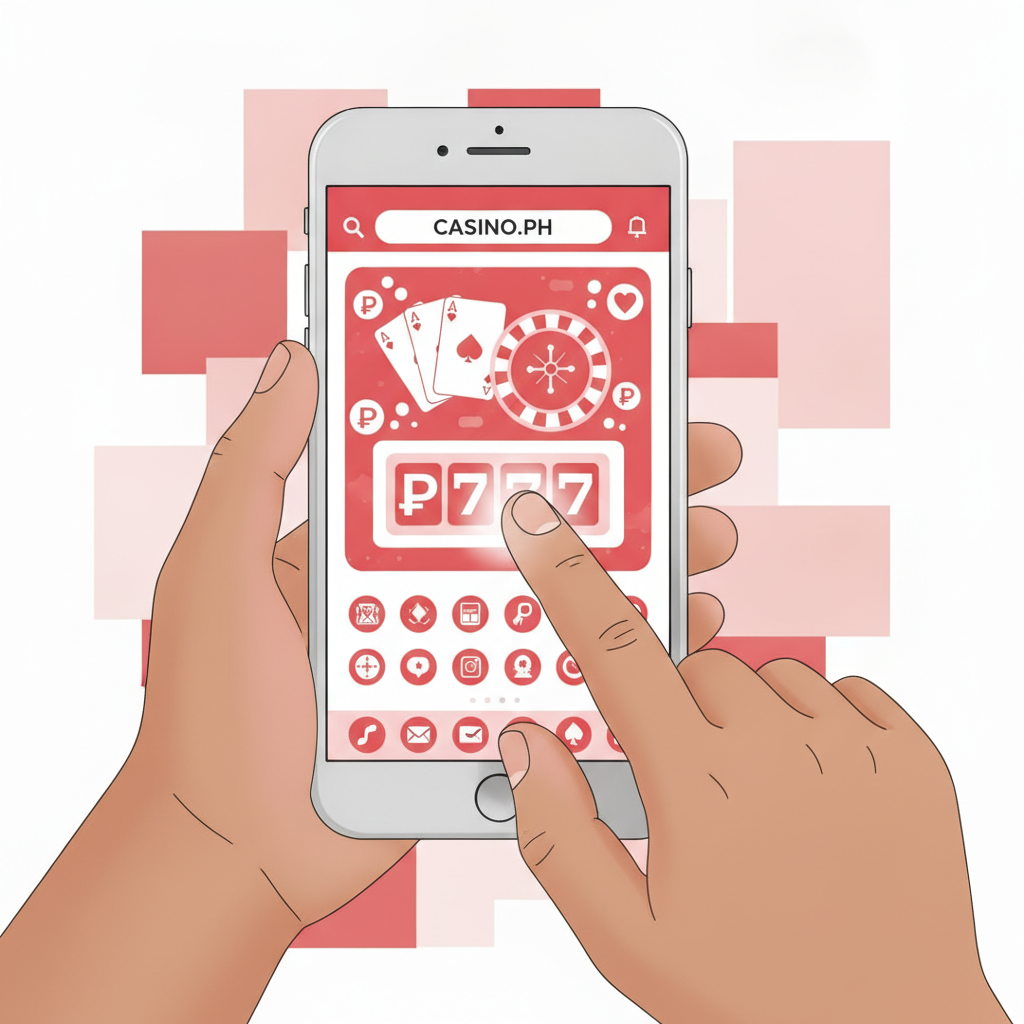
Whether Vermillions Crimson Offers an iOS App or Progressive Web App
Vermillions Crimson does not provide a native app through the Apple App Store. Instead, iPhone users access the platform through a mobile-optimised website that works in Safari and other iOS browsers. This approach—often called a progressive web app or PWA—lets you add a shortcut to your home screen that opens the site in a streamlined, app-like window.
Because Apple's App Store policies restrict real-money casino apps in many markets, most Philippine online casinos use this PWA model for iOS players. The mobile site adapts to your screen size, loads quickly over 4G or Wi-Fi, and supports touch gestures for slots, live dealer tables, and sports betting. You do not need to hunt for an IPA file or jailbreak your device; everything runs in your browser.
For players aged 21 and over in Metro Manila and the provinces, this means you can launch Vermillions Crimson from your home screen just like any installed app, log in with your existing account, and manage GCash or Maya deposits and withdrawals—all without sacrificing storage space on your iPhone.
Step-by-Step: Adding the Mobile Site to Your iPhone Home Screen
Follow these instructions to create a home-screen icon for Vermillions Crimson on any iPhone running iOS 12 or later.
1. Open Safari and Navigate to the Site
Launch Safari—Apple's default browser—and type the Vermillions Crimson web address into the address bar. Wait for the homepage to load completely. Do not use Chrome or Firefox for this process; the "Add to Home Screen" feature works best in Safari.
2. Tap the Share Button
Look for the Share icon at the bottom centre of Safari (on older iPhones) or at the top right (on models with a notch). The icon resembles a square with an arrow pointing upward. Tap it to open the share menu.
3. Scroll and Select "Add to Home Screen"
In the share menu, scroll down through the list of actions until you see Add to Home Screen. Tap it. A new window will appear showing the site's name and icon preview.
4. Edit the Name (Optional) and Confirm
By default, the shortcut will be labelled "Vermillions Crimson" or similar. You can shorten it to "Vermillions" or leave it as is. Tap Add in the top-right corner.
5. Find the Icon on Your Home Screen
The new icon will appear on your home screen alongside your other apps. Tap it to open Vermillions Crimson in a standalone window without Safari's address bar or navigation buttons. The experience feels like a native app, even though it runs in a web view.
This process takes less than a minute and does not require an Apple ID sign-in, App Store download, or any additional permissions.
Logging In and Navigating the iOS-Compatible Interface
Once you have added the shortcut, tap the home-screen icon to launch Vermillions Crimson. The first screen you see will be the login page if you are not already signed in, or the main lobby if Safari has retained your session cookie.
Entering Your Credentials
Tap the Login button (usually in the top-right corner or centre of the screen). Enter the username and password you created during registration. If you have enabled iOS Keychain, Safari may auto-fill your credentials; tap the suggestion above the keyboard to confirm.
After a successful login, you will land on the homepage, which displays rows of slots, live dealer tables, sports events, and quick links to deposits, withdrawals, and account settings.
Navigating the Mobile Interface
Vermillions Crimson's mobile site uses a vertical layout optimised for touch:
- Bottom navigation bar: Most versions place icons for Casino, Sports, Live Dealer, and Account at the bottom of the screen.
- Hamburger menu: Tap the three-line icon in the top-left to reveal links for Deposits, Withdrawals, Promotions, History, and Support.
- Search and filters: In the casino lobby, swipe horizontally through game categories or use the search magnifying glass to find a specific slot or fishing game.
All touch gestures—swipe, tap, pinch-to-zoom on certain tables—work as expected on iPhone. The site remembers your last section when you close and reopen the icon, so you will not need to navigate from the homepage every time.
Using GCash and Maya for Deposits and Withdrawals
When you tap Deposit in the menu, you will see a list of payment methods including GCash, Maya, InstaPay, and PESONet. Select your preferred e-wallet, enter the peso amount (typically PHP 100 minimum), and confirm. The site will redirect you to the GCash or Maya app for biometric or PIN authorisation, then return you to Vermillions Crimson once the payment is approved.
Withdrawals follow a similar flow: tap Withdraw, choose GCash or Maya, enter the amount and your registered mobile number, and submit. Processing times vary—GCash and Maya cashouts often complete within a few hours, while bank transfers over InstaPay or PESONet may take one to two business days.
For detailed troubleshooting of pending or failed transactions, refer to separate guides on this site that cover withdrawal times and e-wallet errors.
Troubleshooting Safari Issues, Clearing Cache, and Re-Adding the Icon
Even though the mobile site is designed to work smoothly on iOS, you may occasionally encounter blank screens, login loops, or slow loading. Here are the most common fixes.
Blank Screen or Stuck Loading
- Close the app window: Swipe up from the bottom of your screen (or double-press the home button on older iPhones) to reveal the app switcher. Swipe the Vermillions Crimson card upward to force-close it.
- Reopen the icon: Tap the home-screen shortcut again. The site will reload from scratch.
If the problem persists, your iPhone may have cached an outdated version of the page.
Clearing Safari Cache and Website Data
- Open the Settings app on your iPhone.
- Scroll down and tap Safari.
- Tap Clear History and Website Data.
- Confirm by tapping Clear History and Data.
This action logs you out of all websites in Safari, including Vermillions Crimson. You will need to log in again the next time you open the shortcut.
Login Loop or Session Expired Error
If you enter your password correctly but the site keeps returning you to the login page:
- Check your internet connection: Switch between Wi-Fi and mobile data to rule out network issues.
- Enable cookies: In Settings > Safari, ensure Block All Cookies is turned off. Vermillions Crimson needs cookies to maintain your session.
- Restart your iPhone: Press and hold the power button, slide to power off, wait ten seconds, then turn it back on.
Re-Adding the Home Screen Icon
If the icon disappears after an iOS update or if you want a fresh start:
- Long-press the icon until a menu appears, then select Remove App or Delete Bookmark.
- Open Safari, navigate to the Vermillions Crimson site, and repeat the "Add to Home Screen" steps described earlier.
The new icon will function exactly as before, with no effect on your account balance or transaction history.
Safari Version and iOS Compatibility
Vermillions Crimson's mobile site works on any iPhone running iOS 12 or newer. If you are using an older device—iPhone 6 or earlier—consider updating to the latest iOS version your model supports. Outdated browsers can cause layout problems, especially with live dealer video streams and interactive betting slips.
21+ Only and Responsible Gambling Reminder
Vermillions Crimson is intended for players aged 21 and over in the Philippines. Online gambling should remain a form of entertainment, not a way to solve financial problems or chase losses.
If you find yourself betting more pesos than you can afford, spending excessive time on slots or sports betting, or feeling anxious about deposits and withdrawals, take a break. Most casino sites, including Vermillions Crimson, offer self-exclusion and deposit-limit tools in the account settings menu.
For confidential support, contact the National Center for Mental Health crisis hotline at 0917-899-USAP (8727) or visit ncmh.gov.ph for resources on responsible gaming and mental health.
Set a budget in pesos before you play, stick to it, and remember that every spin, hand, or bet carries risk. Never gamble with money you need for bills, rent, or daily expenses.
Final Thoughts
Installing Vermillions Crimson on your iPhone is straightforward: open Safari, add the mobile site to your home screen, and log in with your existing credentials. The iOS-compatible interface gives you full access to slots, live dealer games, PBA and NBA sports betting, and e-wallet deposits and withdrawals through GCash and Maya—all optimised for touch and mobile data.
If you run into blank screens or login errors, clearing Safari's cache and re-adding the icon usually resolves the issue. For questions about pending cashouts, InstaPay transfers, or withdrawal processing times, explore the other guides on this site dedicated to payment troubleshooting.
This guide is an independent resource for Filipino players aged 21 and over. It is not published by Vermillions Crimson and does not guarantee specific outcomes, payout rates, or risk-free play. Always gamble responsibly and within your means.